Engineering Solutions Inc. · Renton, WA · (206) 241-9395 · Fax (206) 241-9411

Rugged. Accurate. Easy.
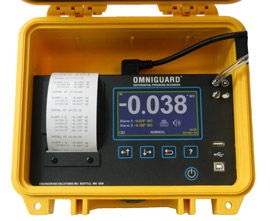
Easy To Use
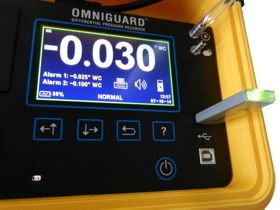
The Omniguard is a differential pressure recorder in a completely self-contained package, designed from the beginning to be extremely versatile yet easy to use. The included accessories, owner's manual, hose, a spare roll of paper and AC cord, store easily in the lid. There's no AC adapter to keep track of.
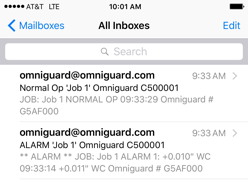
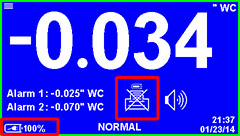
It's easy to find a convenient spot to place the unit since the Omniguard is not position sensitive and can be hung by a nail using the built in hanger. Accurate measurements continue even if the unit is repositioned or moved. The 4.3" color graphics display provides the easiest setup possible. Pressure is indicated with large easy to read characters and alarm setpoints are always displayed. Screen icons show the monitoring, printer and audible alarm status with a glance. Detailed information for job setup, feature settings and operating instructions, and troubleshooting tips are available on-screen at any time by accessing the Help menu. Pressure readings are time stamped and logged into memory once containment has been established. Audible and visual alarms activate whenever the pressure reaches the alarm setpoints.
The Omniguard ensures the site inspector that proper containment was maintained. Logs and summary reports can be printed at any time for easy inspection of the monitoring data. Durable and reliable, the Omniguard is clearly the contractors choice for containment monitoring.
Easily navigate the menus and settings using the user-friendly touch screen interface.
The intuitive lay out and menu orientations mean you can quickly and easily set up and start a job. Touch the icons on the home page to adjust their correlating set points, and use the alpha numeric key board to personalize the contractor and job names and password protection settings.
Multiple screens allow the user to easily inspect and adjust the settings for specific job requirements.
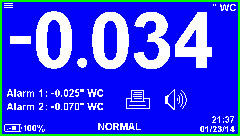
Home Screen View current pressure reading and alarm settings. Monitoring status is shown at the screen bottom. Printer and Alarm status are indicated by on-screen icons. The color-coded border represents the different alarm conditions. |
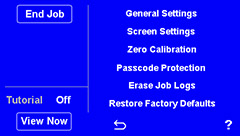
Main Menu Scroll through a menu of all the editable functions and settings. Start or end a job and access the tutorial. |
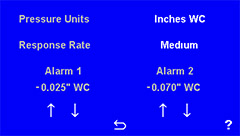
Alarm Settings Screen Make changes to configurable alarm set points, response rate and unit of measure. Saved settings are logged into memory and printed to the report. |
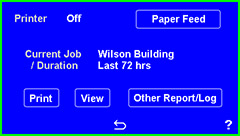
Printing and Reports Find, view and print reports with ease from the printer/reports screen. Quickly turn the printer on or off, and view a report on the screen prior to printing. Simply scroll through any of the saved job logs on the Omniguard and choose the duration of the report you would like to print, ie: Today's job log, the last 24hr, 48 hrs, 72 hrs or the whole report. |
|
|
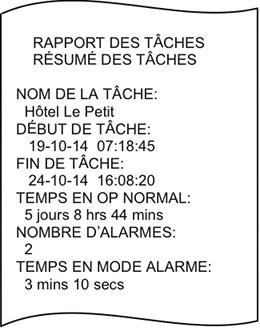
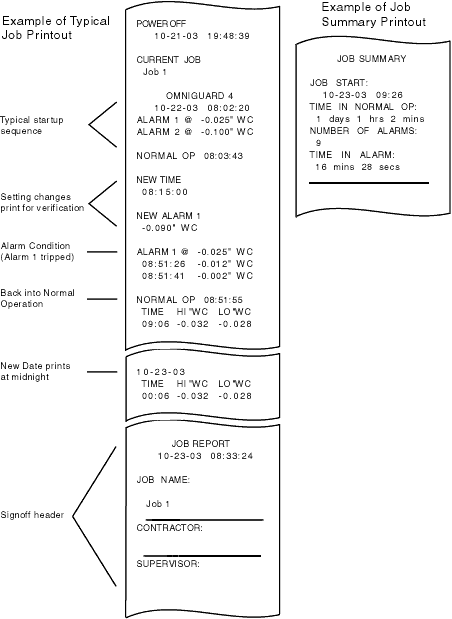
Easy To Read The Omniguard comes equipped with a thermal printer that provides a detailed, easy to read log of the pressure in the containment area as well as recording any changes made to the setup. Retrieving the data log is now quick and easy and more comprehensive than ever before. Touch the printer icon to bring you to the Printer Settings Menu, choose from any job log stored on the Omniguard, then choose to print the log from today, the last 24/48/72 hours, or the entire log. You now also have the option to view the log directly on the screen, rather than printing the entire log. Each of these reports offers the user specific, pertinent information and a hard copy record of the data logged from the containment area. Each printout provides a summary of the current job status, including the amount of time in Normal Operation, the number of Alarms and the amount time in Alarm Conditions (if any) along with an area for sign-off. In addition, a Configuration Report can be viewed and printed from the Printer Settings Menu. The Configuration Report provides a hard copy of all of operational settings, memory usage and log space available. |
|
* Cellular service is provided by Verizon and is only available in areas with Verizon coverage in the USA.