Engineering Solutions Inc. · Renton, WA · (206) 241-9395 · Fax (206) 241-9411

This page contains technical support for the Stingray Keypad Test System which is no longer being produced. Mistral Keypad Test System tech support is also available.
| Topic | Applies To | |
| Shorts between switches not detected | V1.9.0 - V1.9.2 | |
| "Program Error" Or "Automation Error" Under Windows 2000 | V1.0.0 - V1.7.0 | |
| Prompted for password when editing a file even though file has no password. | V1.5.0 - V1.5.1 | |
| "Unable to calibrate pod. MeasurePath returned invalid setup number." Error | V1.5.0 | |
| Can't Stop Cycling Through Series LEDs | V1.4.0 | |
| "Timeout during receive." Error | V1.0.0 - V1.2.3 | |
| LED Not Found Or Seen As A Swtich | V1.0.0 - V1.1.0 | |
| "The calibrated pod setups are not valid!" Error | V1.0.0 - V1.2.0 | |
| Can't Save Keypad Files Or Job Log Files | V1.1.0 - V1.3.0 | |
| Program Appears To Freeze When Run Or Launches Slowly | V1.0.0 - V1.2.3 | |
| "Password file has been corrrupted." Error | All Versions | |
| Downloading Software | All Versions | |
| Pod Is Not Detected By Stingray Software | All Versions | |
| Using A USB Port Instead Of A Serial Port | All Versions | |
| Repairs and Technical Support | All Versions |
Shorts between switches not detected
If there are two switches that have a pin in common, a short between the two pins they do not have in common is not being detected. For example if there is a switch between pins 1 and 2 and another between 1 and 3, a short between pins 2 and 3 is not being detected.
As a workaround turn on "Fail Keypad if more than one switch is active at a time" in the Edit Info window. Note that this is off by default so must be turned on every time a new Keypad File is created.
This problem has been corrected in V1.9.3 software. Visit the Stingray Software Downloads page to get the latest version. We strongly recommend that you upgrade to this version if you are using V1.9.0 through V1.9.2.
"Program Error" Or "Automation Error" Under Windows 2000
When running the Stingray software under Windows 2000, if a Keypad File contains more than one text box a "Program Error" will occur when the file is closed or you quit the program while a file is open. Additionally an "Automation Error" can occur at the end of testing.
As a workaround don't have more than one text box in a Keypad File.
This problem has been corrected in V1.8.0 software. Visit the Stingray Software Downloads page to get the latest version.
Prompted for password when editing a file even though file has no password.
This problem appears when opening a file in edit mode or going into edit mode with a file already open. The file was created without a password yet it asks for one. No password entered is valid.
The problem was reported by one customer and only occurred on one of their computers. The cause appears to be have been unique to that computer's configuration.
This problem has been corrected in V1.6.0 software. Visit the Stingray Software Downloads page to get the latest version.
"Unable to calibrate pod. MeasurePath returned invalid setup number." Error
This error message is displayed when starting to learn or test. The high voltage indicator (connected symbol with lightning bolt) also appears in the lower left corner of the main window.
This problem occurs occassionally with some of the most recently shipped Stingray pods. The software incorrectly thinks the pod is a high voltage pod.
This problem has been corrected in V1.5.1 software. Visit the Stingray Software Downloads page to get the latest version.
Can't Stop Cycling Through Series LEDs
If a Keypad File contains only series LEDs (introduced in V1.4.0) and LED Test Mode is set to "Cycle through LEDs", you can not stop cycling after any LED has been illuminated more than once. The only way to proceed is to fail the part, end the job or press the retry button.
This is a problem with V1.4.0 software. As a workaround change the LED Test Mode to "Pause after each LED" in the Edit Info window for the file. You can then use the space bar to advance from one series LED to the next. Alternately you can continue to use "Cycle through LEDs" and press the space bar just as the last LED is illuminated. If you miss it, click the retry button to test the part again. This will prevent your part counts from being incorrect.
This problem has been corrected in V1.5.0 software. Visit the Stingray Software Downloads page to get the latest version.
"Timeout during receive." Error
This error can occur when you launch the program with the pod connected and turned on. It is followed by the message "Error while trying to find pod (SetSetups)!". This indicates that you need to update to a newer version of software.
We began shipping a updated version of the pod on May 1 of 2001. Stingray software shipped prior to that date is not compatible with these new pods. Visit the Stingray Software Downloads page to get the latest version which will work with any Stingray pod.
This problem applies to V1.2.3 and earlier software. Stingray software V1.3.0 or later tells you when it needs to be updated.
LED Not Found Or Seen As A Swtich
Some LEDs will not be found when learning. Others will be recognized correctly during learning or testing but then the same two pins will come up as a high resistance path (either a switch or a short).
This is a known problem with V1.1.0 and earlier versions of software when testing some types of LEDs. The problem has been corrected in V1.2.0 software. Visit the Stingray Software Downloads page to get the latest version.
If you have the latest version of software and are still experiencing problems detecting LEDs please contact Tech Support.
"The calibrated pod setups are not valid!" Error
The Stingray calibrates itself automatically when starting to test and periodically thereafter. In rare cases you may get a "The calibrated pod setups are not valid!" error message.
This problem has been corrected in V1.2.1 software. Visit the Stingray Software Downloads page to get the latest version.
Can't Save Keypad Files Or Job Log Files
In some cases, after creating a new file nothing happens when Save As.. is selected from the File menu or when prompted to save before a file is closed. The problem is that the program tries to generate a default file name the first time a file is saved. This default file name is based on the Part Number entered in the Edit Info window. If the Part Number contains any character that are invalid in file names (such as :, \, /, *, etc.) the Save As... dialog will not appear.
As a workaround, remove any invalid characters from the part number. After the file has been saved for the first time you can add those characters back.
The problem with Job Log Files is similar. In this case the program attempts to create a file name based on the Job Number entered when the job is started. If there are any characters in the Job Number that are not allowed in file names, no Job Log dialogs will appear at the end of the job. The only solution to this problem is to avoid using invalid characters in the Job Number when starting the job.
These problems have been corrected in V1.4.0 software. Visit the Stingray Software Downloads page to get the latest version.
Program Appears To Freeze When Run Or Launches Slowly
The program may appear to freeze up when launched if large detailed report files were saved in in the "Keypad Files" folder or any of its subfolders. The program has not crashed. It is just trying to determine what the file is.
As a workaround, move any large report files out of the "Keypad Files" folder and its subfolders. When saving report files after finishing a job, place them in different location.
This problem has been corrected in V1.3.0 software. Visit the Stingray Software Downloads page and download the latest version.
"Password file has been corrrupted." Error
This error message is displayed when the program is started. File editing is disabled.
This problem is the result of the program not being properly installed. Whenever you install the program or move it to a new computer you need to run the setup program. If you just copy the files from an existing installation you will get this error.
To correct this problem download and run the latest installer.
Pod Is Not Detected By Stingray Software
Verify that the serial cable is connected to the computer and pod and that the pod is turned on. The "power" light on the front of the pod should be green. If it is orange, the serial cable is not connected properly.
If you are connecting to a serial port that was connected to a mouse, perform the following steps. Note this will deactivate your mouse so you will need another pointing device such as the track pad on a laptop or a PS/2 mouse.
Your mouse should now be disabled. Run the Stingray software and verify it recognizes the pod. You will need to reverse the steps above to restore use of your mouse once you have finished with the Stingray.
If the "power" light is green but pod is still not recognized, the software did not install correctly. The most likely cause is that the installer was unable to load all the necessary files because some of them were in use or virus protection software was running. To correct the problem, perform the following.
If the program still doesn't recognize the pod after performing the above steps, try running the installer again and selecting the "Replace same version or older" in the "Select Installation Method" window.
Using A USB Port Instead Of A Serial Port
We recommend using a computer with a serial port to communicate with the Stingray. If no serial port is available though and your computer has USB ports, you can use the Stingray with a USB to serial adapter. You may notice a slight slowdown in performance compared to using a serial port.
Begin by installing the USB to serial adapter, following the instructions that came with the device. Connect your Stingray pod to the serial port on the adapter and turn the pod on. Run the Stingray software and verify the pod is detected. If you get an error saying the pod was not found you will need to configure your adapter by performing the following steps.
Connect only the USB to serial adapter you will be using for the Stingray to your computer.
Open the Device Manager by clicking the "Device Manger" button in the System Control Panel, Hardware tab.
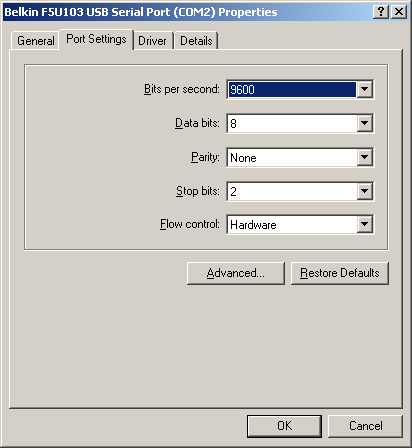
Double click on the USB to serial port adapter under "Ports" in the Device Manager to open the Properties. In the Port Settings tab set up the port as shown below.
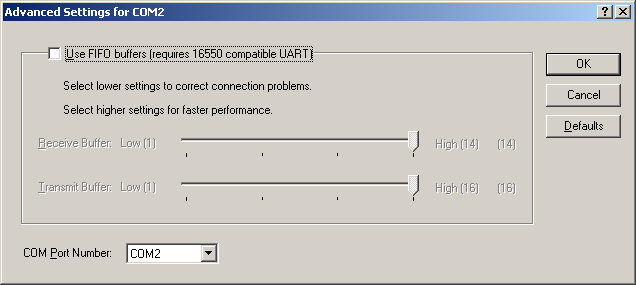
Next click on the "Advanced..." button. Uncheck "Use FIFO buffers" and confirm the port is set to COM1, 2, 3 or 4 as shown below.
Click "OK" to save Advanced settings and "OK" again to save properties. Then unplug the adapter and wait till it is no longer shown in the Device Manager.
Plug the adapter back in and connect the Stingray. When you run the Stingray software it should now be able to detect the pod
If you need to send your Stingray in for repair you must get a Return Materials Authorization (RMA). You can fill out the RMA Request Form, call 206-241-9395 ext. 112 or email your complete contact information including address and phone number along with serial numbers of all units to be repaired to
If you have questions about your Stingray call tech support at 206-241-9395 ext. 112 or email