Help Index | >

|
Setup
|

|
Buildup of static electric charge on membrane switch keypads is a common
occurrence. If a static discharge occurs through the Mistral it can cause
erratic behavior and may result in damage to the pod or your computer. It is
strongly recommended that you use the Mistral only at a static-safe
workstation.
|
Connecting The Mistral
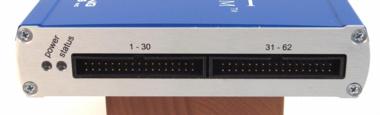
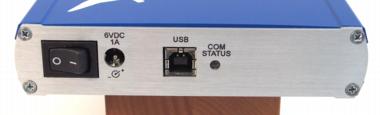
- Plug the power adapter into a wall outlet and connect the power plug to the Mistral.
-
Plug one end of the flat ribbon cable into the Mistral pod and connect the other end to
the Keypad Test Adapter.
- Switch the unit on.
-
Connect the Mistral to the PC using the included USB cable. For pods with one LED, it should
change from flashing to solid green indicating the Mistral is ready to go.
If your pod has two LEDs, you should see the left
one turn green instead of orange. If the
LED indication is not correct, verify that the USB cable is connected to the PC USB port.
When you connect the Mistral to the PC for the first time, you may be asked to
install the drivers. See Installing Mistral USB Drivers below to learn how.
Installing Mistral USB Drivers
The Mistral Keypad Test System communicates with the PC using
the included USB cable. Drivers for the Mistral are installed
when the Mistral software is installed.
Windows 7 and Vista
Windows® 7 and Vista should recognize the Mistral as soon
as it is plugged in. You should see a window pop up at the bottom of the screen
saying "Device driver software installed successfully". If the Mistral
is not detected, see Troubleshooting below.
Windows XP and 2000
If you are using Windows XP or 2000, begin the installation by connecting the Mistral to
an available USB port on the computer. The "Found New Hardware Wizard" window will open
indicating Windows detected new hardware. Follow the steps shown below to finish the
installation. If nothing happens when the Mistral is plugged or Windows is not able
to locate the drivers see Troubleshooting below.
|
Windows XP Driver Installation
|
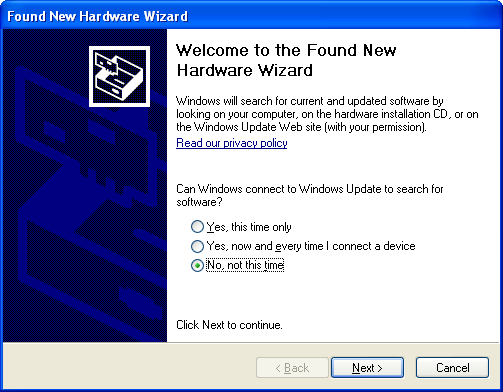
When the Mistral is plugged in for the first time a window such as this will appear. Select
No, not at this time and click Next.
|
|
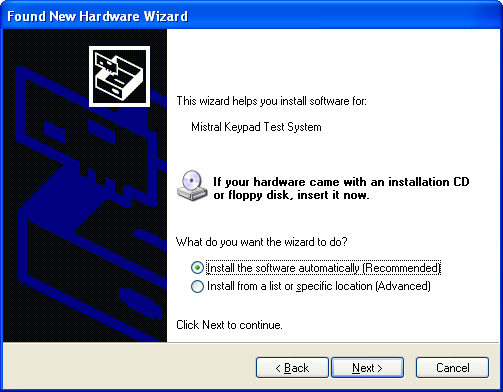
Choose Install the software automatically. Then click Next.
|
|
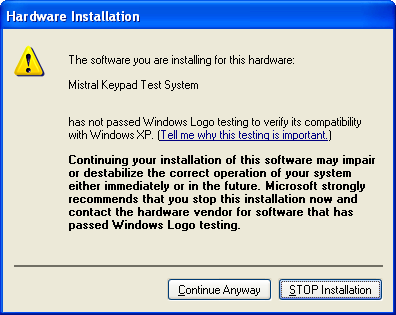
This window will appear to indicate that the drivers are not tested by Microsoft. Click Continue Anyway to
install the drivers.
|
|
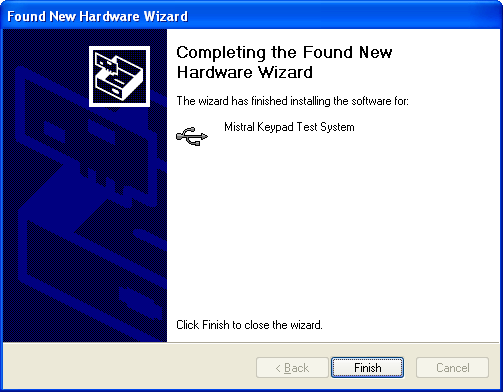
The installation was a success. Click Finish.
|
|
Updating Mistral USB Drivers
After you've updated the Mistral software, the program may tell you updated USB
drivers are available. Because the Mistral software may require the updated
drivers to operate reliably, you should install them when instructed to do so.
Note that you may need to be logged in using an administrator account to update
drivers.
To update the drivers you will need to open the Device Manager on your computer. Below
are the typical procedures for doing this with various operating systems. If you have trouble
locating the Device Manager on your computer, open the Windows help and search for "Device Manager".
Opening The Device Manager
|
Windows 7
- Click the Start button and select "Control Panel".
- Click "Hardware and Sound".
- Click "Device Manager".
Windows Vista
- Click the Start button and select "Control Panel".
- Click "System and Maintenance".
- Click "Device Manager".
Windows XP and 2000
- Click the Start button and select "Control Panel".
- Click "Performance and Maintenance".
- Click "System".
- Open the Device Manager by clicking on the button in the "Hardware" tab.
|
With the Device Manager open and the Mistral connected you should see the
"Mistral Keypad Test System" icon under "Other devices" or "Universal Serial Bus controllers".
Right click on the icon and select "Update Driver" or "Update Driver Software" from the pop-up
menu. Follow the steps shown below to complete the update process.
|
Windows 7 and Vista Driver Updating
|
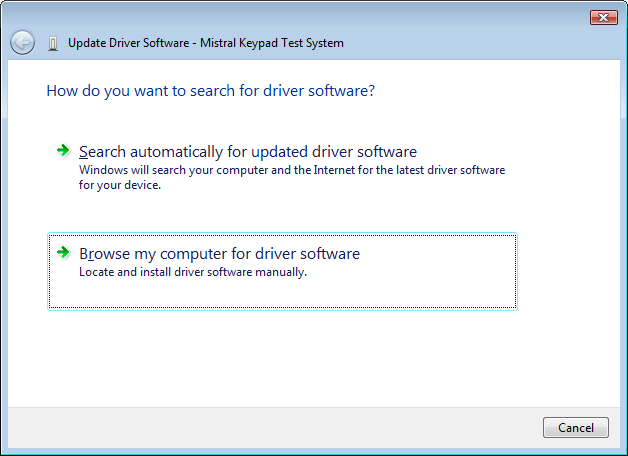
Click Browse my computer for driver software.
|
|
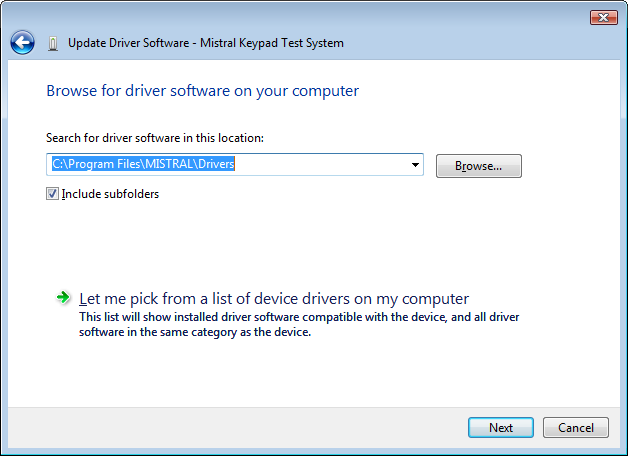
Click Browse and select the location of the drivers. They will be in the "Drivers" folder
located in the folder where the program was installed. This is usually
"C:\Program Files\Engineering Solutions Inc\Mistral Keypad Test System 4\".
After you select the Drivers folder, click Ok and then click Next.
|
|
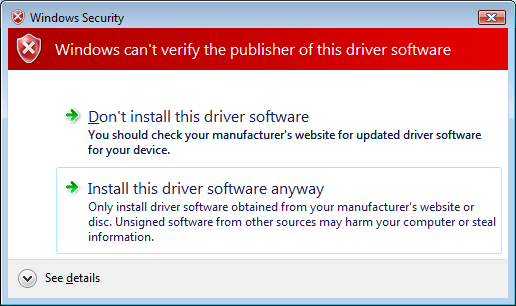
Click Install this driver software anyway.
|
|
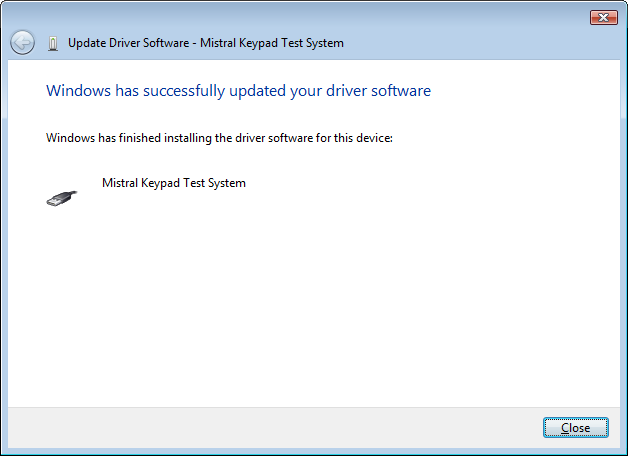
The installation was a success. Click Close.
|
|
|
Windows XP and 2000 Driver Updating
|
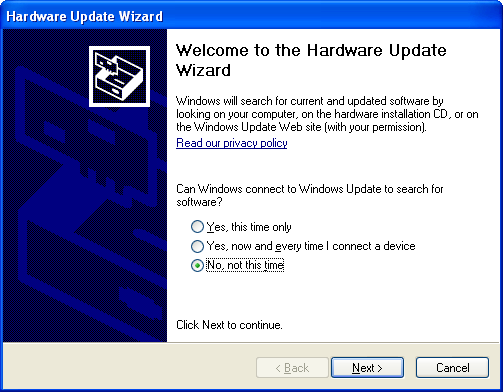
When asked if Windows can connect to Windows Update select No, not at this time. and click Next.
|
|
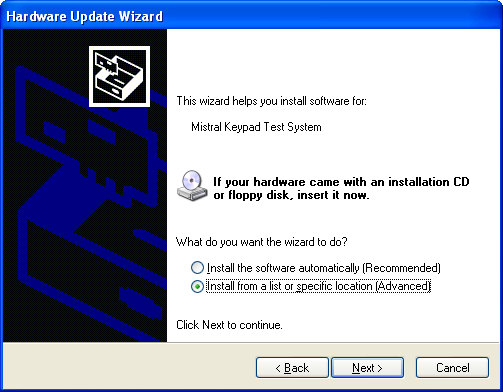
Select Install from a list or specific location and click Next.
|
|
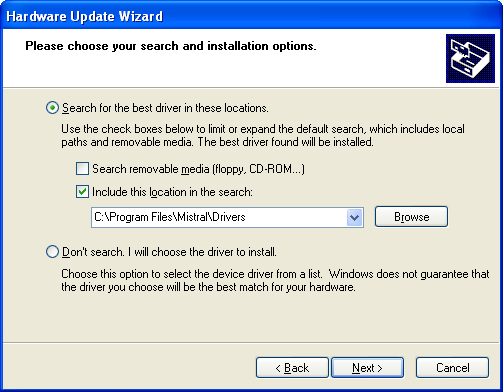
Choose Search for the best driver in these locations and select
Include this location
in search
. Then click Browse.
Select the location of the drivers. They will be in the "Drivers" folder
located in the folder where the program was installed. This is usually
"C:\Program Files\Engineering Solutions Inc\Mistral Keypad Test System 4\".
After you select the Drivers folder, click Ok and then click Next.
Click Continue Anyway when untested driver warning appears.
|
|
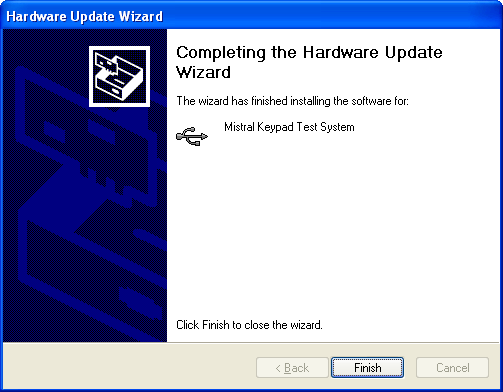
The installation was a success. Click Finish.
|
|
Mistral USB Driver Troubleshooting
In some cases the drivers may not install properly. If this occurs the Mistral will not be recognized
when it is plugged in. You will need to remove the device using the Device Manager
and then point Windows to the correct drivers.
- Connect the Mistral to the USB port.
- Open the Device Manager as described in Updating Mistral USB Drivers above.
-
In the "System Properties" window select the "Device Manager" tab or open
the Device Manager by clicking on the button in the "Hardware" tab, depending on
the version of Windows you are using (see below).
-
Right click "Mistral Keypad Test System" under "Other devices" or "Universal Serial Bus controllers"
and select "Uninstall" from the pop-up
menu.
- Disconnect the Mistral from the USB port. Wait a moment and then reconnect it.
-
Follow the instruction in Updating Mistral USB Drivers above to re-install
the drivers.
If you continue to have problems you will need to unplug the Mistral from your computer
and uninstall the driver. Open "Add/Remove Programs" or "Programs and Features"
("Uninstall a program") in the Control Panels and uninstall the Mistral USB
driver. Then plug the Mistral back in and follow the instructions in Updating Mistral USB Drivers.
Of course Windows is a registered trademark of Microsoft Corporation.
Help Index | >
Index de Ayuda | >
|
|
Ajustes
|
|
|
Acumulación de cargo electrostático en el teclado es una ocurrencia común.
Si un descargo estático ocurre en el Mistral puede causar comportamiento
erratico y puede resultar en daños al pod o la computadora. Es recomendable
que uses el Mistral solamente en una estación de trabajo antiestática.
|
Conectar el Mistral
- Conecte el adaptador de potencia al Mistral y luego a un enchufe.
-
Conecte un final de la cinta al pod Mistral y conecte la otra parte al Adaptador
de Pruebas Teclado.
- Encienda la unidad.
-
Conecte el Mistral a la PC con el cable USB incluído. Para pods con un LED, debe cambiar de
intermitente a verde sólido indicando que el Mistral está listo.
Si el pod tiene dos LEDs, el LEd izquierdo debe cambiar a verde en lugar
de naranja. Si la indicación de los LEDs es incorrecto, verifique que el
cable USB esté conectado a la PC.
Cuando conecte el Mistral a la PC por primera vez, se le puede pedir que
instale los controladores. Vea Instalando Controladores Mistral USB para
aprender como.
Instalando Controladores Mistral USB
El Sistema de Pruebas para Teclado Mistral comunica con la PC
usando el cable USB incluído. Controladores para Mistral son
instalados con la instalación del software Mistral.
Windows 7 y Vista
Windows® 7 y Vista deben reconocer al Mistral cuando conecta. Debe
de ver una ventana al fondo de la pantalla diciendo "Controlador instalado exitosamente".
Si el Mistral no es detectado vea Solución de problemas.
Windows XP y 2000
Si usas Windows XP o 2000, empieza la instalación conectando el Mistral a la PC. La ventana
"Encontré Nuevo Hardware" abrirá indicando que Windows detectó nuevo hardware. Sigue los pasos
mostrados abajo para terminar la instalación. Si nada pasa cuando conectes el Mistral o Windows
no encuentra los controladores vea Solución de problemas.
|
Instalación Controlador Windows XP
|
|
Cuando el Mistral es conectado por primera vez esto aparecerá. Seleccione
No, not at this time y clic Next.
|
|
|
Escoja Install the software automatically. Luego clic Next.
|
|
|
Esta ventana indica que los controladores no son probados por Microsoft. Clic Continue Anyway para
instalar los controladores.
|
|
|
La instalación fue exitosa. Clic Finish.
|
|
Actualizando el Controlador USB
Después de actualizar el software Mistral, el programa puede decirle que hay
controladores USB nuevos. Porque el software Mistral puede requerir el controlador
nuevo, debe instalarlo cuando le diga.
Nota que pueda necesitar ser administrador para actualizar los controladores.
Para actualizar los controladores necesita abrir el Device Manager en su computadora. Abajo
son los pasos comunes para hacer esto en varios sistemas operativos. Si tiene problemas
localizando el Device Manager abra la ayuda de Windows y busque por "Device Manager".
Abriendo el Device Manager
|
Windows 7
- Clic el botón Start y seleccione "Control Panel".
- Clic "Hardware and Sound".
- Clic "Device Manager".
Windows Vista
- Clic el botón Start y seleccione "Control Panel".
- Clic "System and Maintenance".
- Clic "Device Manager".
Windows XP y 2000
- Clic el botón Start y seleccione "Control Panel".
- Clic "Performance and Maintenance".
- Clic "System".
- Abra el Device Managerpor oprimiendo el botón en el tab "Hardware".
|
Con el Device Manager abierto y el Mistral conectado debe ver el icono "Mistral
Keypad Test System" bajo "Other Devices" o "Universal Serial Bus controllers". Haga clic
derecho al icono y seleccione "Update Driver" o "Update Driver Software" de el menú. Siga
los pasos abajo para completar el proceso.
|
Actualizando Controlador Windows 7 y Vista
|
|
Clic Browse my computer for driver software.
|
|
|
Clic Browse y seleccione la ubicación de los controladores. Van a estar en la carpeta "Drivers"
en la carpeta donde el programa fue instalado. Comunmente es
"C:\Program Files\Engineering Solutions Inc\Mistral Keypad Test System 4\".
Después de seleccionar la carpeta Drivers, clic Ok y luego Next.
|
|
|
Clic Install this driver software anyway.
|
|
|
La instalación fue exitosa. Clic Close.
|
|
|
Actualizando Controlador Windows XP y 2000
|
|
Cuando Windows le pregunte si puede conectar a Windows Update seleccione No, not at this time. y clic Next.
|
|
|
Seleccione Install from a list or specific location y clic Next.
|
|
|
Escoja Search for the best driver in these locations y seleccione
Include this location
in search
. Luego clic Browse.
Seleccione la ubicación de los controladores. Van a estar en la carpeta "Drivers"
en la carpeta donde el programa fue instalado. Comunmente es
"C:\Program Files\Engineering Solutions Inc\Mistral Keypad Test System 4\".
Después de seleccionar la carpeta Drivers, clic Ok y luego Next.
Clic Continue Anyway cuando el aviso aparezca.
|
|
|
La instalación fue exitosa. Clic Finish.
|
|
Solución de problemas de Controlador USB
En unos casos los controladores no instalan correctamente. Si esto ocurre el Mistral no va a ser reconocido
cuando conecta. Necesitará remover el dispositivo usando el Device Manager y luego dirigir a Windows
a los controladores corrector.
- Conecte el Mistral al puerto USB.
- Abra el Device Manager como descito en Actualizando el Controlador USB arriba.
-
En la ventana "System Properties" seleccione el tab "Device Manger" o abra
el Device Manger oprimiendo el botón en tab "Hardware", dependiendo en la versión
de Windows que usa (vea abajo).
-
Clic derecho "Mistral Keypad Test System" bajo "Other devices" r "Universal Serial Bus controllers"
y seleccione "Uninstall" en el menú.
- Desconecte el Mistral del puerto USB. Espere un momento y reconectelo.
-
Siga las instrucciones en Actualizando el Controlador USB arriba para instalar
los controladores.
Si continua teniendo problemas necesitará desconectar el Mistral y desinstalar el controlador.
Abra "Add/Remove Programs" o "Programs and Features" ("Uninstall a program") en el Control Panel
y remueva el controlador USB de Mistral. Luego reconecte el Mistral y siga las instrucciones en
Actualizando el Controlador USB.
Windows es una marca registrada de Microsoft Corporation.
Index de Ayuda | >